AI how-to notes · 2026-09-18 · last run 2026-09-18 · 한국어 원문
Word automatic table of contents — inserting it, updating it, and why new headings go missing
One line summary
Word's automatic table of contents goes in from [참조] (References) > [목차] (Table of Contents) at the far left of the tab, and after you edit the document you have to press [목차 업데이트] (Update Table) to recalculate it. The dialog that appears offers two choices, and the one preselected — 「페이지 번호만 업데이트」 (Update page numbers only) — does not add newly written headings to the table. We inserted a TOC into a 6-page dummy report built with Heading 1 and Heading 2, added two headings, grew the body by 1,330 characters, then pressed each option separately and counted entries and page numbers. One extra finding came out of it: save to PDF without updating the TOC and the page numbers printed in the PDF differ from the ones on screen.
Symptom
You put an automatic table of contents in a report, later add another section and grow the body, and now the page numbers in the table do not match reality. The question is whether you have to rebuild the table or whether there is a separate way to fix it.
Test environment
| Item | Value |
|---|---|
| OS | Windows 11 Home (10.0.26200) |
| Word | Microsoft Word 16.0, build 16.0.20326, display language code 1042 (Korean) |
| Style names | Heading 1 = 제목 1, Heading 2 = 제목 2, Normal = 표준 |
| Dummy document | Page 1 = the table of contents, body from page 2. Four Heading 1 and seven Heading 2, 6 pages in all |
| Paper | A4 portrait (595.3 x 841.9 pt in the PDF) |
| How we checked | Saved to PDF, then pulled the text page by page with PyMuPDF 1.28.0 (MuPDF 1.29.0) on Python 3.12.10 and counted |
The document and the PDFs were all created under C:\Users\User\AppData\Local\Temp\office_Z1 and nowhere else. The names and numbers inside, such as 홍길동 and 010-0000-0000, are invented.
The ribbon and the dialog were opened in a real Word window, clicked and captured. The parts that count entries and page numbers were driven through automation (Word COM) doing the same actions.
What the TOC picks up is the Heading 1 and Heading 2 styles
The field code of the table we inserted was TOC \o "1-2", and all eleven lines that made it into the table were paragraphs styled as Heading 1 or Heading 2. The 「목차」 line at the top of page 1 is the Normal style at 20pt bold, and it did not make it in. The dummy document was laid out like this.
1. 사업 개요(제목 1)
  1.1 배경(제목 2) + 본문
  1.2 목적(제목 2) + 본문
2. 추진 내용(제목 1) …
(In order: "1. Project overview" as Heading 1, then "1.1 Background" and "1.2 Purpose" as Heading 2 with body text, then "2. Work performed" as Heading 1.)
Asking Word for the style names through automation returned exactly the names shown on screen.
[스타일 이름] Heading1 = 제목 1 | Heading2 = 제목 2 | Normal = 표준Step 1 — insert the table from the [참조] tab
Click [참조] (References) on the ribbon and the 「목차」 (Table of Contents) group is at the far left.
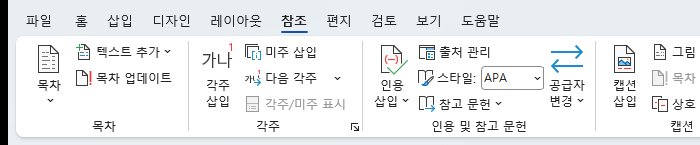
The three buttons in the group are [목차] (Table of Contents), [텍스트 추가] (Add Text) and [목차 업데이트] (Update Table). Asking Word directly for the button names gives the same thing.
   TableOfContentsGallery: Label = 목차
   TableOfContentsUpdate: Label = 목차 업데이트...
   TableOfContentsAddTextGallery: Label = 텍스트 추가
Put the cursor where the table should go, click [목차] and pick an automatic table.
After inserting, the entry count was eleven and the document was 6 pages.
[쪽 수 - 목차 넣기 전] 6
[목차 개체 수] 1
[목차 필드 코드] TOC \o "1-2"
[전] 목차 항목 수 = 11
    1. 사업 개요 -> 2
    1.1 배경 -> 2
    ...
    4.2 정성 -> 5
(The labels read page count before inserting the table, number of TOC objects, the field code, and the entry count with each entry's page number.)
What goes into the table's place is a field, TOC \o "1-2". The 1-2 means it collects Heading 1 through Heading 2. As the rest of this note shows, editing the document left this field's result sitting at its old values.
Saving to PDF and matching each heading's actual page against what the table claimed, all eleven were correct.
=== Z1_48_before.pdf : 6쪽, 쪽 크기 595.3 x 841.9 pt
  제목 | 목차가 적은 쪽 | PDF에서 실제 쪽 | 맞나
  1. 사업 개요 | 2 | 2 | O
  2.2 담당 | 3 | 3 | O
  4.2 정성 | 5 | 5 | O
  어긋난 항목 = 0
(6 pages at that page size; the columns are heading, the page the table claims, the actual page in the PDF, and whether they match. 어긋난 항목 = mismatched entries.)
Step 2 — add headings and grow the body
We created a real editing situation.
- Added 1,330 characters of body text under 「1.2 목적」 (1.2 Purpose) to push the rest of the document down.
- Appended 「5. 위험 요인」 (5. Risk factors, Heading 1) and 「5.1 대응 방안」 (5.1 Mitigation, Heading 2) at the end of the document.
That takes the document from 6 pages to 7. The table was left untouched, so its entry count is still eleven.
[쪽 수 - 내용 추가 뒤] 7
[갱신 전] 목차 항목 수 = 11
    2.2 담당 -> 3
    3. 예산 -> 4
[갱신 전] 본문 제목 수 = 13
    2.2 담당 @ 4쪽
    3. 예산 @ 5쪽
    5. 위험 요인 @ 6쪽
    5.1 대응 방안 @ 6쪽
(Page count after adding content, then the entry count before updating, then the count of headings in the body with the page each one is on.)
The table says 「2.2 담당」 is on page 3 when it has actually moved to page 4, and the two new headings are not in the table at all.
Step 3 — the dialog that [목차 업데이트] opens
Put the cursor inside the table and press [목차 업데이트] (or F9) and this dialog appears.
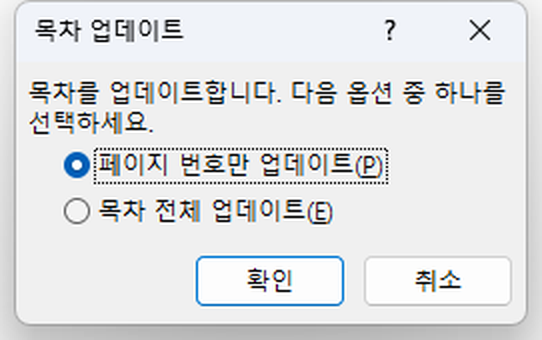
The dialog is titled "목차 업데이트" and the prompt reads "목차를 업데이트합니다. 다음 옵션 중 하나를 선택하세요." ("Word is updating the table of contents. Select one of the following options."). Below it are two radio buttons, and on opening, the dot sits on 「페이지 번호만 업데이트(P)」 (Update page numbers only). Click [확인] (OK) straight through and the newly added headings do not come in.
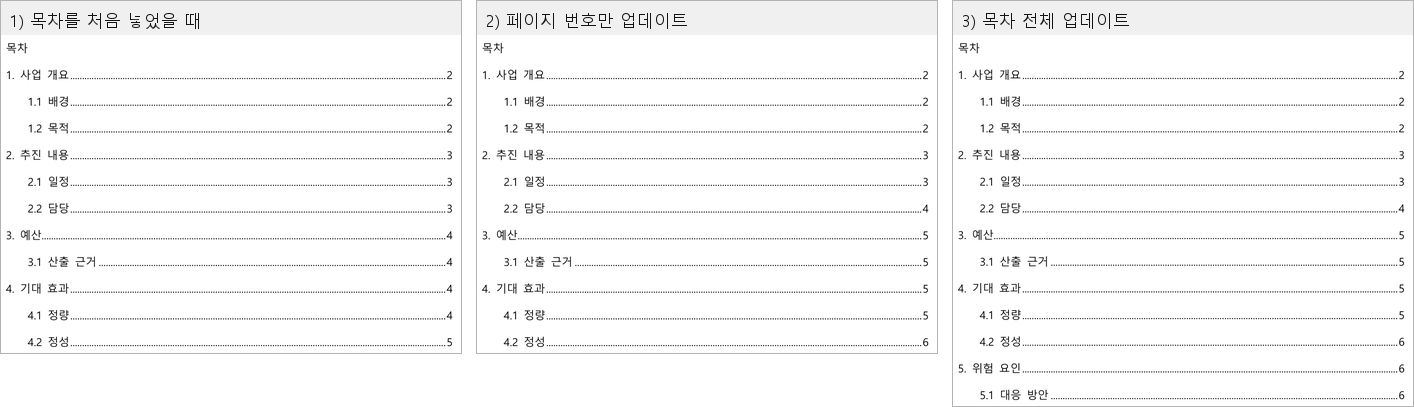
We opened two copies of the same file and ran one through 「페이지 번호만 업데이트」 and the other through 「목차 전체 업데이트」 (Update entire table), pulling entry counts and page numbers from each.
=== 페이지 번호만 업데이트 ===
[누르기 전] 항목 수 = 11 | 쪽 번호 = [2, 2, 2, 3, 3, 3, 4, 4, 4, 4, 5]
[누른 뒤]   항목 수 = 11 | 쪽 번호 = [2, 2, 2, 3, 3, 4, 5, 5, 5, 5, 6]

=== 목차 전체 업데이트 ===
[누르기 전] 항목 수 = 11 | 쪽 번호 = [2, 2, 2, 3, 3, 3, 4, 4, 4, 4, 5]
[누른 뒤]   항목 수 = 13 | 쪽 번호 = [2, 2, 2, 3, 3, 4, 5, 5, 5, 5, 6, 6, 6]
(누르기 전 = before clicking, 누른 뒤 = after, 항목 수 = entry count, 쪽 번호 = page numbers.)
Both options fix the page numbers. The entry count stays at 11 for the first and rises to 13 only for the second.
Counting the PDF produced from the 「목차 전체 업데이트」 run again, all thirteen entries matched their actual pages.
=== Z1_48_after.pdf : 7쪽, 쪽 크기 595.3 x 841.9 pt
  목차에 적힌 항목 수 = 13
  2.2 담당 | 4 | 4 | O
  5. 위험 요인 | 6 | 6 | O
  5.1 대응 방안 | 6 | 6 | O
  어긋난 항목 = 0
Whether 「페이지 번호만 업데이트」 leaves the old wording in place when you change a heading's text itself was not measured this round. What we confirmed here is the case of adding new headings.
Saved to PDF without updating, and the page numbers were right
We saved without updating the table and the screen and the PDF disagreed. On screen 「2.2 담당」 is on page 3; save the same file to PDF and it prints as page 4.
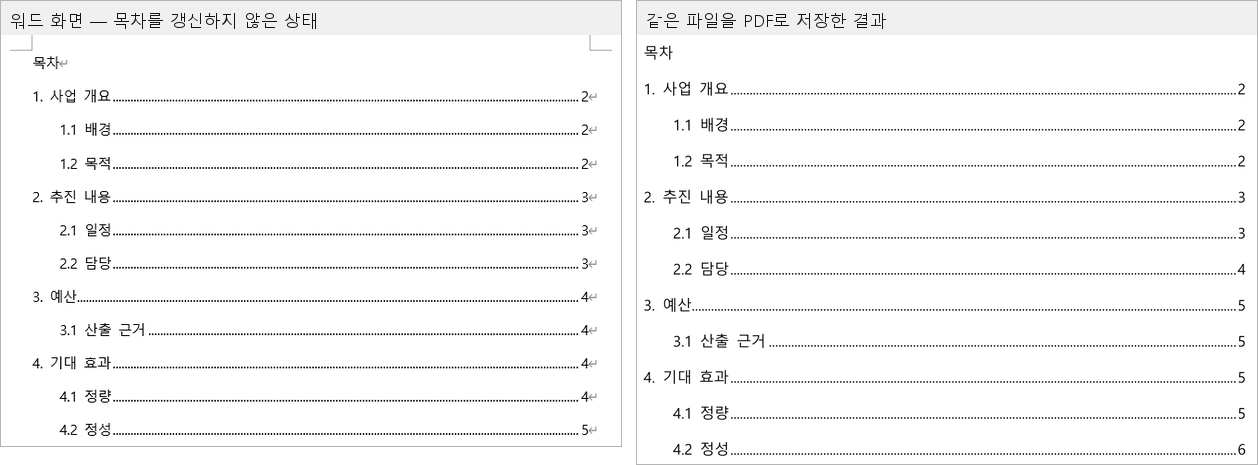
The table text stored inside the document did not change across the save.
[Options.UpdateFieldsAtPrint] False
[문서 안의 목차 글]
    2.2 담당 | 3
    3. 예산 | 4
[내보낸 뒤 문서 안의 목차 글]
    2.2 담당 | 3
    3. 예산 | 4
[PDF 1쪽 목차]
    2.2 담당 ... 4
    3. 예산 ... 5
(The three blocks are the table text inside the document, the same text after exporting, and the table as printed on page 1 of the PDF.)
The "update fields before printing" setting was off and it still came out this way. The table text read before and after the export was identical, and only the numbers printed in the PDF matched the actual pages. We could not establish why.
The resulting file sizes matched too. The PDF saved without updating and the PDF saved after 「페이지 번호만 업데이트」 are both 184,820 bytes.
[PDF 저장] Z1_48_stale.pdf 184820 bytes
[PDF] Z1_48_upd_page.pdf 184820 bytes
[PDF] Z1_48_upd_all.pdf 185850 bytes
This is where it gets easy to be misled. Open the PDF, see that the page numbers are right, and you assume the table is current — but the newly added headings are still missing. Pressing [목차 업데이트] → 「목차 전체 업데이트」 before handing anything to PDF is the safe habit.
Results
| What was done | TOC entries | Document pages | Page number for 2.2 담당 | Actual page |
|---|---|---|---|---|
| Table just inserted | 11 | 6 | 3 | 3 |
| 2 headings added + 1,330 characters of body (before updating) | 11 | 7 | 3 | 4 |
| Update page numbers only | 11 | 7 | 4 | 4 |
| Update entire table | 13 | 7 | 4 | 4 |
What failed
- Our first automation script searched the document from the top for the text 「1.2 목적」 and grabbed the table's entry line first. That put the body text we meant to add inside the TOC field, and we threw away the first round of numbers measured in that state. A TOC entry line has the shape "heading + tab + page number", so we fixed it to skip lines containing a tab and re-ran. The logs that remain are from the corrected re-run, so the first round's record was overwritten.
- To break the page before the first body heading we applied
InsertBreakat the end of the document, and the page did not break. We never found out why, and switched to turning on the paragraph propertyPageBreakBeforeinstead. - Reading paragraph style names through automation, one heading paragraph that had the page-break property set returned an empty value instead of a style name. So we abandoned counting headings by style and counted by heading text instead. Why only that paragraph behaved that way was not established.
What we did not test
- Whether 「페이지 번호만 업데이트」 leaves the old wording after you change a heading's text was not run. As noted above, we only confirmed adding headings this round.
- Heading 3 and deeper (
TOC \o "1-3") and the settings in the custom table of contents dialog were left alone. Every value here came fromTOC \o "1-2". - Tables of figures and tables of tables were not covered.
- Whether Ctrl+A → F9, which updates every field in the document at once, gives the same result was not measured.
- We did not separately measure and compare clicking [목차 업데이트] on screen through to [확인] against the automated run. The entry counts and page numbers in this note all come from the automation side.
- Which set of numbers comes out when printing on paper — screen or PDF — was not checked.
- Button names on builds other than Word 16.0, or in another display language, were not checked.
Related notes
The companion notes on this topic — landscape sections for wide tables, starting page numbering after the cover, and keeping tables, images and page numbers intact when saving to PDF — cover the Hangul word processor (HWP) and are available in Korean only.