AI how-to notes · 2026-09-18 · last run 2026-09-18 · 한국어 원문
Excel to PDF cuts off the right-hand columns — measuring Fit to 1 page wide on Windows
One line summary
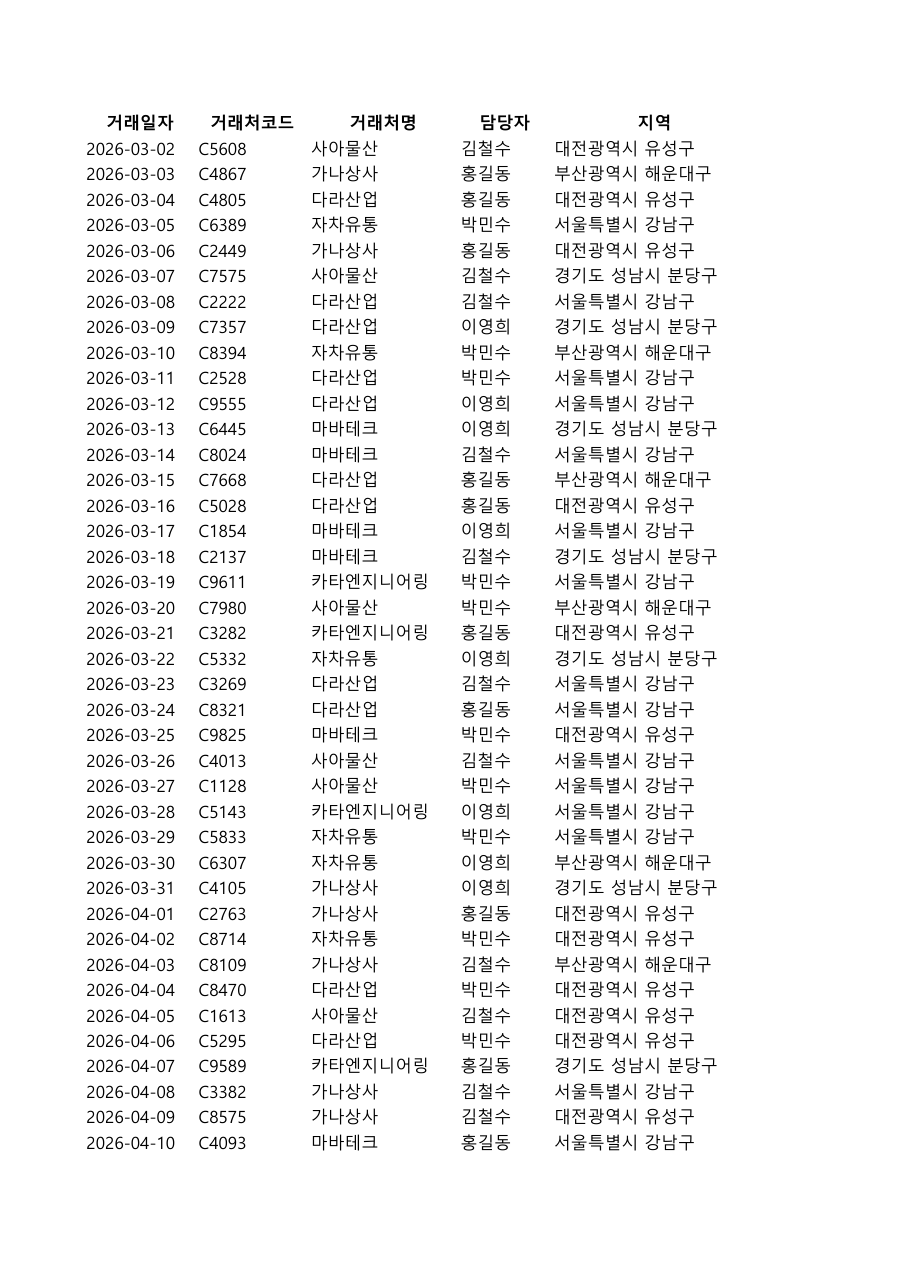
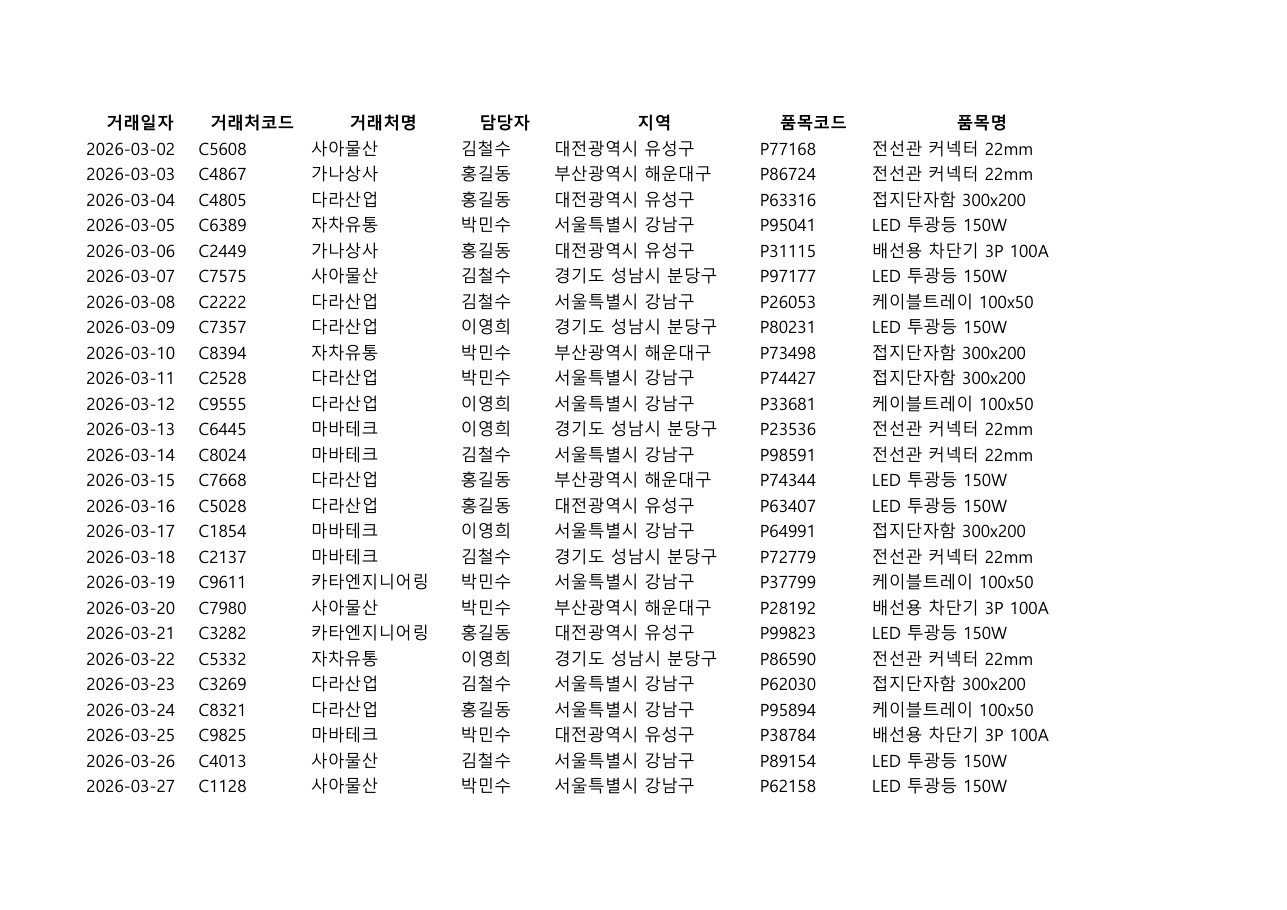
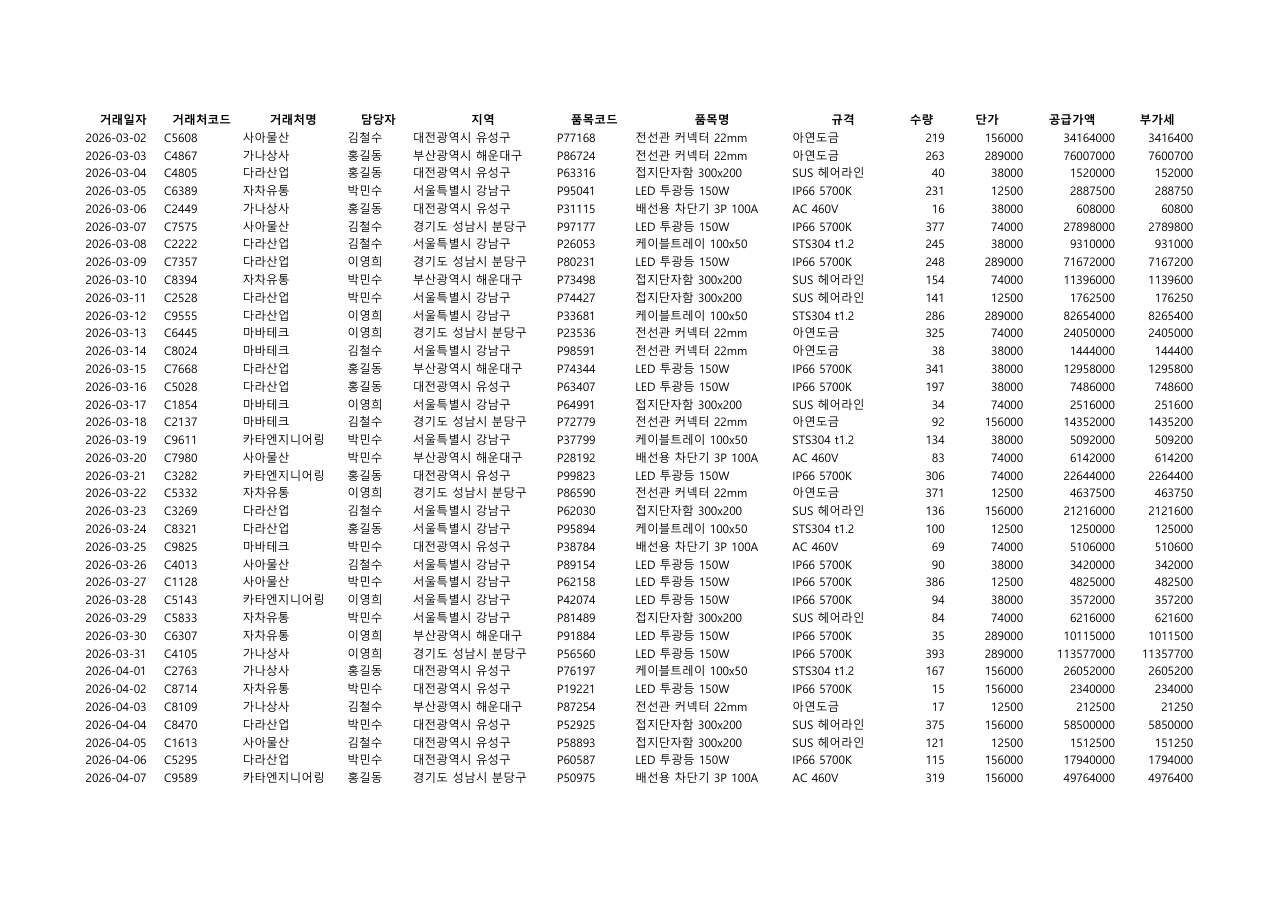
A 12-column table exported to PDF untouched came out as 6 A4 pages, with only the first 5 columns on page 1. Switching the paper to landscape brought it down to 4 pages with 7 columns; adding 「너비: 1페이지」 (Width — 1 page) on top of that put all 12 columns on 2 pages. Orientation alone was not enough — the scaling had to be switched to fit-to-width before the clipping stopped.
Symptoms
- Export a wide table to PDF and the last few columns spill onto later pages.
- The page count multiplies. In our test one 45-row table became 6 pages.
- The page carrying the spilled columns does get their column names, but the pages that merely continue the rows (2, 4, 6) carry no column names at all.
Test environment
| Item | Value |
|---|---|
| OS | Microsoft Windows 11 Home 10.0.26200 (build 26200) |
| Shell | PowerShell 7.6.6 |
| Excel | Excel 16.0, build 20326, language code 82 |
| Default printer | Ne01:에 있는 Hancom PDF — Hancom PDF on port Ne01: |
| Test file | A dummy sales table we built ourselves — 12 columns × 45 rows (46 including the header), UsedRange A1:L46 |
| Columns | 거래일자·거래처코드·거래처명·담당자·지역·품목코드·품목명·규격·수량·단가·공급가액·부가세 — date, customer code, customer name, owner, region, item code, item name, spec, quantity, unit price, net amount, VAT |
| PDF export | Excel COM Worksheet.ExportAsFixedFormat(0, <path>) |
| Page counting | Python 3.12.10 + PyMuPDF 1.28.0 |
Customer name, owner and region are invented values drawn with random.choice (홍길동·김철수·이영희·박민수 for people, 가나상사·다라산업 and the like for companies — the Korean equivalent of John Doe and Acme Inc.). No company file was opened.
Three export conditions
We exported the same file three ways — untouched, orientation changed only, and orientation plus fit-to-width. Below is the settings part lifted out of the script we actually ran.
$xl = New-Object -ComObject Excel.Application
$xl.Visible = $false
$wb = $xl.Workbooks.Open("$T\E1_매출표.xlsx")
$ws = $wb.Worksheets.Item(1)

# 조건1 — 아무것도 건드리지 않고 저장
$ws.ExportAsFixedFormat(0, "$T\E1_21_a_기본.pdf")

# 조건2 — 용지 방향만 가로 (2 = xlLandscape)
$ws.PageSetup.Orientation = 2
$ws.ExportAsFixedFormat(0, "$T\E1_21_b_가로.pdf")

# 조건3 — 가로 + 너비 1페이지 맞춤
$ws.PageSetup.Zoom = $false
$ws.PageSetup.FitToPagesWide = 1
$ws.PageSetup.FitToPagesTall = $false
$ws.ExportAsFixedFormat(0, "$T\E1_21_c_너비1.pdf")
Then we counted the pages in each PDF and checked how many of the 12 column names appeared in each page's text.
import fitz
headers = ["거래일자","거래처코드","거래처명","담당자","지역","품목코드",
           "품목명","규격","수량","단가","공급가액","부가세"]
doc = fitz.open("E1_21_a_기본.pdf")
p1 = doc[0].get_text()
print(doc.page_count, [h for h in headers if h in p1])
Results
| Condition | Paper | Scaling | PDF pages | Columns on page 1 | Columns pushed off page 1 |
|---|---|---|---|---|---|
| 1 · untouched | Portrait A4 (595×842pt) | Zoom=100 | 6 pages | 5 (거래일자~지역) | 7 |
| 2 · landscape | Landscape A4 (842×595pt) | Zoom=100 | 4 pages | 7 (거래일자~품목명) | 5 |
| 3 · landscape + 1 page wide | Landscape A4 (842×595pt) | Zoom=False, Wide=1 | 2 pages | all 12 | none |
In condition 1 the columns pushed off page 1 were 품목코드·품목명·규격·수량·단가·공급가액·부가세 (item code through VAT). They landed split across pages 3 and 5. Pages 2, 4 and 6 are row continuations, so not one column name appeared on them.
Landscape paper alone is not enough
Dumping the PageSetup values in condition 1 gives this.
Orientation      = 1   (1=xlPortrait)
PaperSize        = 9   (9=xlPaperA4)
Zoom             = 100
FitToPagesWide   = 1
FitToPagesTall   = 1
FitToPagesWide was already 1 and it still produced 6 pages. What condition 3 changes relative to condition 2 is Zoom to False and FitToPagesTall to False — and that is when the 12 columns landed on one page.
Orientation      = 2
Zoom             = False
FitToPagesWide   = 1
FitToPagesTall   = False
Conditions 1 and 2 had FitToPagesWide=1 stored and still split the columns across pages, because Zoom=100 was in force. In the 「페이지 설정」 (Page Setup) dialog on screen, 「확대/축소 배율」 (Adjust to) and 「자동 맞춤」 (Fit to) are two radio buttons, so picking one greys out the other's boxes. We did not watch the screen to see which way that radio moves after setting Zoom = $false over COM.
We also measured FitToPagesTall set to False against set to 1.
FitToPagesTall | Pages | Most common font size inside the PDF |
|---|---|---|
False (height left alone) | 2 pages | 7.68pt |
1 (height onto one page too) | 1 page | 6.36pt |
Putting 1 in shrinks it to a single sheet, at the cost of the type dropping from 7.68pt to 6.36pt. That is measured on a 45-row table; we did not measure a table with more rows.
Doing it on screen (Excel 16.0, Korean UI)
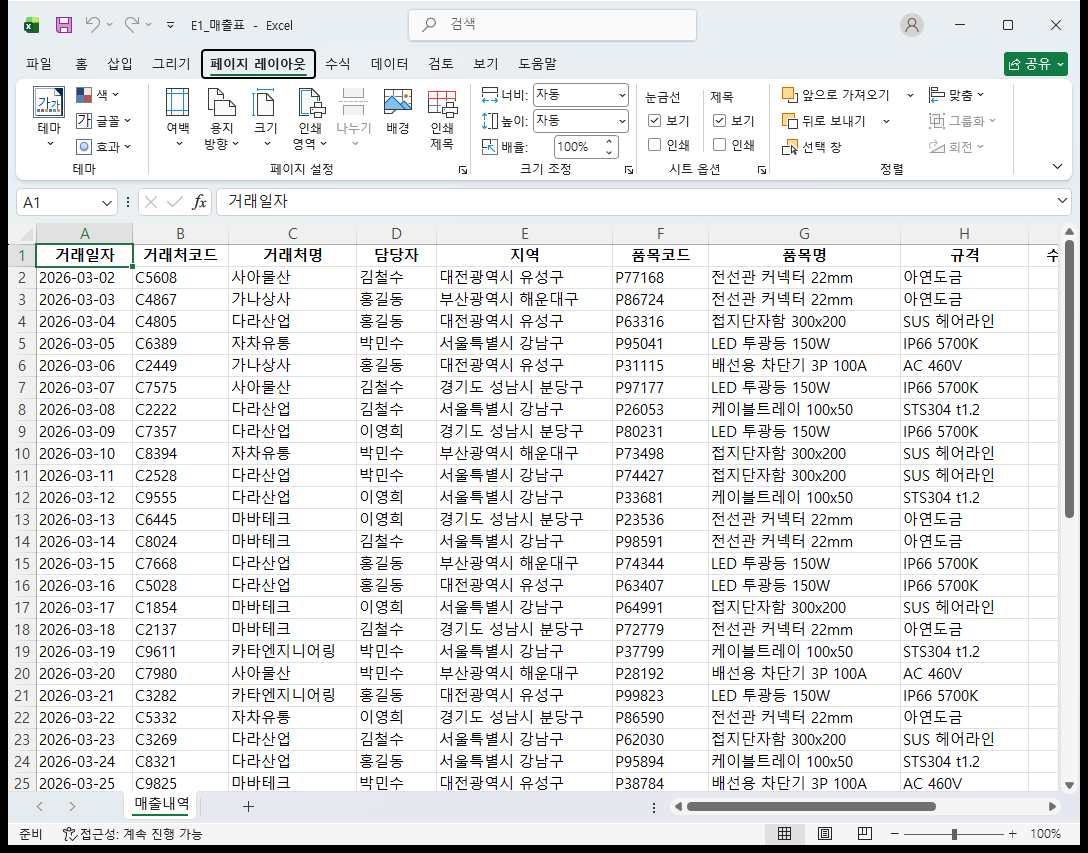
On the ribbon it is all one tab — 페이지 레이아웃 (Page Layout). That tab holds five groups: 「테마 / 페이지 설정 / 크기 조정 / 시트 옵션 / 정렬」 (Themes / Page Setup / Scale to Fit / Sheet Options / Arrange).
- Orientation — 페이지 레이아웃 → the 페이지 설정 group → 용지 방향 (Orientation). That group holds the margins, orientation, size, print area, breaks, background and print-titles buttons.
- Fit to width — 페이지 레이아웃 → the 크기 조정 (Scale to Fit) group. It has the 「너비:」 (Width), 「높이:」 (Height) and 「배율:」 (Scale) boxes; in our screenshot of the untouched file, width and height read
자동(Automatic) and scale read100%. The setting matching condition 3 above is changing that 너비 (Width) to1페이지(1 page) — but we did not actually change it on the ribbon and match the result against COM.
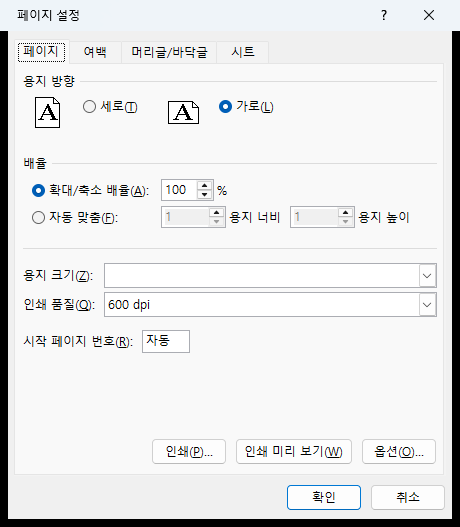
For the dialog, click the small arrow at the bottom right of the 「페이지 설정」 group. The window is titled 「페이지 설정」 (Page Setup), and the 'scaling' box on the [페이지] (Page) tab holds the 「확대/축소 배율(A)」 (Adjust to) and 「자동 맞춤(F)」 (Fit to) radio buttons. Fit to is followed by two number boxes — the first is page width, the second is page height. At the moment we captured it, Adjust to was selected, so Fit to's two boxes were greyed out.
Column names disappearing from page 2 on
The condition 3 PDF was 2 pages, and page 2 carried no column names at all. It starts in the middle of the table, so whoever receives it cannot tell the columns apart. Repeating the header row on every page fixes it.
$ws.PageSetup.PrintTitleRows = '$1:$1'With that set, the PDF's page 2 also began with 거래일자 | 거래처코드. The same thing on the ribbon is the 인쇄 제목 (Print Titles) button in 페이지 레이아웃 → the 페이지 설정 group. We confirmed from the screenshot that the button sits in that group. We did not open the window it brings up.
Repeating this over many files
For a handful of files the menu above is faster. Scripts only pay off for a whole folder, and then you have to build the file to open and the PDF path to export separately for each file inside the loop, and close each workbook. The snippet above has one fixed path, so dropping it straight into a loop overwrites the same PDF.
Call $xl.Quit() when you are done, and check that no EXCEL process is left behind. Our own logs record processes surviving Quit() several times; on one of those we printed the PID and killed it separately.
What failed
- There were runs where a PDF exported after setting
PageSetup.Orientation = 2over COM came out portrait (595×842pt). Reading the value back immediately before the export still showedOrientation=2. Of 21 exports intended as landscape, 8 came out portrait. - To narrow the cause we ran three variants three times each — "export immediately after setting", "wait 1 second after setting", and "set the orientation a second time". The first two came out landscape all 3 times and the last came out portrait all 3 times. Yet in the test immediately before that, only the "set it a second time" variant had come out landscape. The results flipped, and we could not build an explanation.
- Some runs started with an EXCEL process already up (the logs record a PID before the start). Whether that process affected the results, we could not determine.
- The 6 / 4 / 2 page figures in the table above came out the same across two tests run at different times, and we only listed values where the page size (595×842 / 842×595) confirmed the orientation had really been applied.
- We could not capture the screen behind the 「인쇄 제목」 button. The screenshots in this note stop at two — the Page Layout tab and the 「페이지 설정」 dialog — and there is no record of us opening any other window.
What we did not test
- We did not measure the path where a human clicks the ribbon and saves. Every page-count comparison was a COM export. Nor did we look at what happens to the 「배율」 box next to 「너비」 when width is set to 1 page on the ribbon.
- We did not compare 「다른 이름으로 저장 → PDF」 (Save As → PDF) against 「인쇄 → Microsoft Print to PDF」 (Print → Microsoft Print to PDF).
- We did not check whether the same page counts come out with a default printer other than the Hancom PDF driver.
- We did not test a table with far more columns, where automatic scaling drops into single-digit percentages. The numbers in this note come from one 12-column, 45-row table.
- We did not check whether the group and button names are the same in other versions such as Excel 2016 or 2019.