AI how-to notes · 2026-09-18 · last run 2026-09-18 · 한국어 원문
Removing duplicates in Excel — how far apart name-only and name-plus-department really land
One line summary
We ran 「중복된 항목 제거」 (Remove Duplicates) on the same 15-row roster and, depending on what we matched on, it left 7, 9 or 12 rows. Match on name alone and only the topmost row of each name survives, so a namesake with a different employee number gets deleted along with the real duplicates. Decide what a single record in this table is keyed on before you delete anything.
Who this is for
- Anyone who merged rosters and now has the same person in twice.
- Anyone who clicked Remove Duplicates and is uneasy because the surviving row count is not what they expected.
- Anyone working with a roster that contains namesakes.
Test environment
| Item | Value |
|---|---|
| OS | Microsoft Windows 11 Home 10.0.26200 (build 26200) |
| Shell | PowerShell 7.6.6 |
| Excel | Excel 16.0, build 20326 |
| Cross-check | Python 3.12.10 + pandas 3.0.3 + openpyxl 3.1.5 |
| Test file | A dummy roster we built ourselves — 3 columns (사번 employee no., 이름 name, 부서 department) × 15 rows |
The roster we tested with
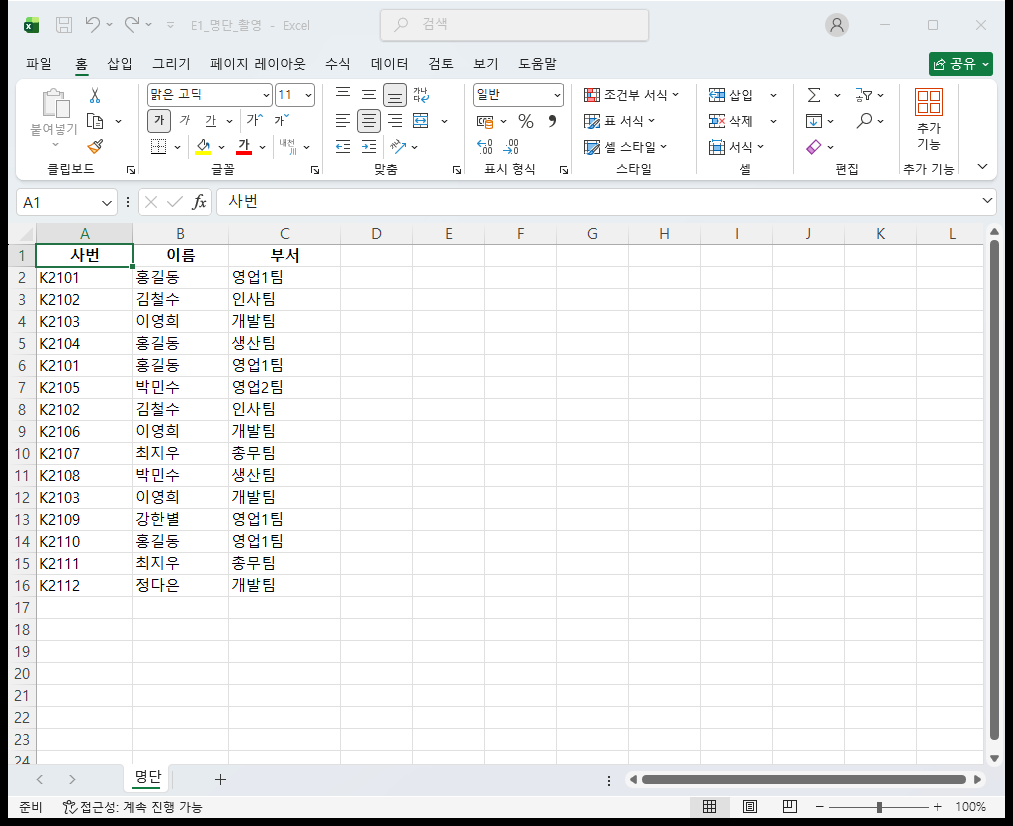
We deliberately mixed three things in: rows that are identical down to the employee number, namesakes with the same name in different departments, and namesakes with the same name and department but different employee numbers.
| Excel row | 사번 | 이름 | 부서 | What kind of row |
|---|---|---|---|---|
| 2 | K2101 | 홍길동 | 영업1팀 | |
| 3 | K2102 | 김철수 | 인사팀 | |
| 4 | K2103 | 이영희 | 개발팀 | |
| 5 | K2104 | 홍길동 | 생산팀 | Same name as row 2, different person |
| 6 | K2101 | 홍길동 | 영업1팀 | Identical to row 2 |
| 7 | K2105 | 박민수 | 영업2팀 | |
| 8 | K2102 | 김철수 | 인사팀 | Identical to row 3 |
| 9 | K2106 | 이영희 | 개발팀 | Same name and department as row 4, only the number differs |
| 10 | K2107 | 최지우 | 총무팀 | |
| 11 | K2108 | 박민수 | 생산팀 | Same name as row 7, different person |
| 12 | K2103 | 이영희 | 개발팀 | Identical to row 4 |
| 13 | K2109 | 강한별 | 영업1팀 | |
| 14 | K2110 | 홍길동 | 영업1팀 | Same name and department as row 2, only the number differs |
| 15 | K2111 | 최지우 | 총무팀 | Same name and department as row 10, only the number differs |
| 16 | K2112 | 정다은 | 개발팀 |
Every name, employee number and department is invented. (The names are stock Korean placeholder names; the departments read Sales 1, HR, Dev, Production, Sales 2, General Affairs.)
Three criteria, run separately
On screen you click once inside the table, then 데이터 (Data) tab → 데이터 도구 (Data Tools) group → 중복된 항목 제거 (Remove Duplicates), and tick only the columns you want matched in the dialog that opens. The numbers in this note, though, did not come from that dialog. They came from passing the key columns to RemoveDuplicates over COM, and we were not able to compare them row by row against the on-screen operation.
$ws = $wb.Worksheets.Item(1)

# 기준 A — 이름(2번째 열)만. Header:=xlYes 는 두 번째 인수 1
$ws.Range("A1:C16").RemoveDuplicates(2, 1)

# 기준 B — 이름+부서(2·3번째 열)
$cols = New-Object object[] 2; $cols[0] = 2; $cols[1] = 3
$ws.Range("A1:C16").RemoveDuplicates($cols, 1)

# 기준 C — 사번+이름+부서 세 열 전부
$cols3 = New-Object object[] 3; $cols3[0] = 1; $cols3[1] = 2; $cols3[2] = 3
$ws.Range("A1:C16").RemoveDuplicates($cols3, 1)
Each criterion ran against a fresh copy of the original file. Run them one after another on a single file and the second pass is computed on rows the first pass already deleted, so the results blend together.
We counted the surviving rows this way — walk up from the bottom of column A (-4162 = xlUp) to the last cell holding a value. This roster runs unbroken below the header, so subtracting 1 from the last row number gives the data row count.
$last = $ws.Cells.Item($ws.Rows.Count, 1).End(-4162).Row
"남은 데이터 행 수 = " + ($last - 1)
Results — 15 rows split into 7, 9 and 12
| Criterion | Columns ticked | Rows left | Rows deleted |
|---|---|---|---|
| A | 이름 (name) | 7 rows | 8 rows |
| B | 이름 + 부서 (name + department) | 9 rows | 6 rows |
| C | 사번 + 이름 + 부서 (number + name + department) | 12 rows | 3 rows |
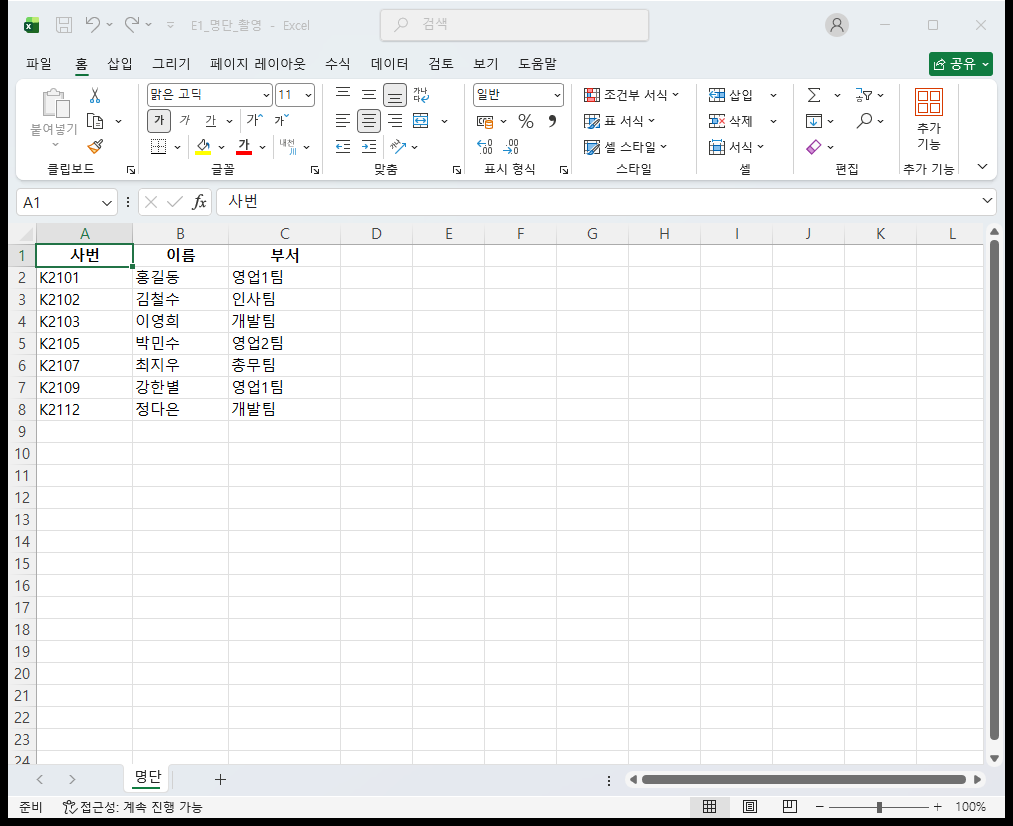
The 7 rows left by criterion A were 홍길동(K2101)·김철수(K2102)·이영희(K2103)·박민수(K2105)·최지우(K2107)·강한별(K2109)·정다은(K2112). 홍길동 of 생산팀 (K2104) and 박민수 of 생산팀 (K2108) are gone. Two people in a different department dropped off the roster purely because their names collided.
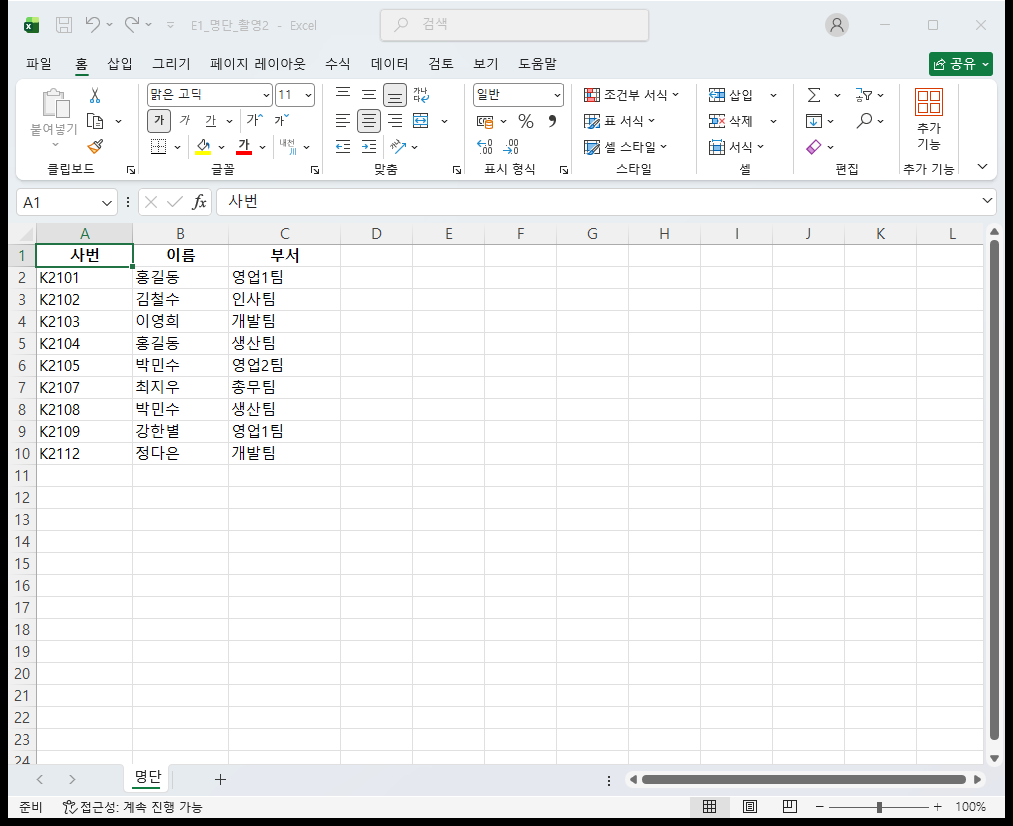
The 9 rows left by criterion B brought back 홍길동(K2104) and 박민수(K2108) of 생산팀. In exchange, 이영희(K2106) of 개발팀, 홍길동(K2110) of 영업1팀 and 최지우(K2111) of 총무팀 dropped out. Namesakes who share a department still cannot be told apart.
Criterion C deleted only 3 rows — row 6 (K2101 홍길동), row 8 (K2102 김철수) and row 12 (K2103 이영희). Those are the rows where all three columns match, the literal duplicates.
Under all three criteria, the row that survived was the topmost of each matching group. Under criterion A, K2101 from row 2 held the 홍길동 slot while row 5's K2104 and row 14's K2110 were deleted — that is the same rule at work. So if there is a specific row you want kept, sort it to the top before deleting. We did not go as far as sorting by a date column and testing whether the most recent row survives.
The same job in Python
Give drop_duplicates in pandas a keep="first" and it keeps the first row, the way Excel does.
import pandas as pd
df = pd.read_excel("E1_명단.xlsx")
df.drop_duplicates(subset=["이름"], keep="first")                  # 7행
df.drop_duplicates(subset=["이름", "부서"], keep="first")           # 9행
df.drop_duplicates(subset=["사번", "이름", "부서"], keep="first")    # 12행
We compared the rows Excel kept against the rows pandas kept, one by one. All three criteria matched on both count and content.
| Criterion | Excel | pandas | Contents match |
|---|---|---|---|
| Name only | 7 rows | 7 rows | True |
| Name + department | 9 rows | 9 rows | True |
| Number + name + department | 12 rows | 12 rows | True |
We spelled the column names out in subset for all three criteria.
Which criterion to pick
In this roster the column that identifies one person is the employee number, so the answer is "delete with the employee number included." Here is how to reason it out.
- What does that number count one of — a number like an employee number, one per person, belongs in the key. An order number does not: one order can run to several line items, so the same number does not mean the same row. Establish what unit the number counts first.
- If there is no unique number, what has to match for it to be the same person — name alone will not do. Look for a combination unlikely to collide, such as name + phone number or name + date of birth.
- Count before you delete — write down the row count before and after, and ask whether the drop is plausible. 15 rows becoming 7 means more than half, 8 rows, were deleted. That is a stop signal.
- Keep the original aside — Remove Duplicates really does delete rows. We copied the original file fresh for each criterion. Running all three criteria over one file blends the results.
What failed
- We could not capture the 「중복된 항목 제거」 dialog (the window with the column checkboxes). Another program's login window kept holding the front of the screen, so we could not send keystrokes to the Excel window. The window title and the look of the checkboxes are not things we saw with our own eyes.
- On the first test we closed with
Close($false)afterRemoveDuplicateswithout aSave(), and nearly compared against pandas with the results never written to the file. Reproducing it deliberately: right after the delete, memory held 7 rows, but opening the file closed without saving showed all 15 rows still there. - Passing several column numbers to
RemoveDuplicatesas[int[]]@(2,3)in PowerShell raisedValue does not fall within the expected range.Switching to an array built withNew-Object object[] 2went through, and produced 9 rows at that same spot.
What we did not test
- We did not check the wording of the result notice (the message saying how many were removed) that appears when Remove Duplicates is clicked on screen. We ran with
DisplayAlerts = $falseover COM. - We did not test whether Excel treats values differing by case or leading and trailing spaces (
홍길동versus홍길동) as the same or different. No such values are in this roster. - Nor did we test the verdict when types are mixed, such as the number 1 against the string "1".
- The menu path 데이터 → 데이터 도구 → 중복된 항목 제거 is not something we confirmed on screen in this round. The three images above are captures of the sheet only; we never got the dialog open.
- We did not test the conditional formatting 「중복 값」 (Duplicate Values) rule, which only colors the matching cells.
- We did not cover behavior when the table contains merged cells or blank rows.