AI how-to notes · 2026-09-18 · last run 2026-09-18 · 한국어 원문
Getting a PDF table into Excel without uploading it anywhere — and why a scan fails
One line summary
Moving a table out of a PDF and into Excel does not require an online converter. Work down this list — the 「데이터 가져오기 > PDF에서」 (Get Data > From PDF) command already sitting in Excel, then opening the PDF in Word, then Python (pdfplumber) if neither worked. On our test table all three methods brought the amounts in as text, so Excel's SUM came out 0. On a scan (a PDF that is really just a photo) two of them got nothing at all, and only Word produced a table — with wrong numbers in it.
Who this is for
- Anyone who has to retype a statement a supplier sent as a PDF, and would rather not upload company material to a conversion site
- Anyone whose numbers landed in Excel but refuse to add up, or don't match the original
- Anyone who has to explain why a scanned PDF won't convert
Test environment
| Item | Value |
|---|---|
| OS | Windows 11 Home (10.0.26200) |
| Shell | Git Bash |
| Excel | 16.0 (Build 20326.0) |
| Word | 16.0 (Build 16.0.20326) |
| Python | 3.12.10 |
| Python packages | pdfplumber 0.11.10, PyMuPDF 1.28.0, openpyxl 3.1.5 |
| Test file | A table invented for the test. No company material, no real names |
The table we tested with
We built a table in Excel and exported it to PDF. The sheet is 23 rows; drop the title row at the top and the table itself is 22 rows — 1 header row, 20 data rows, 1 total row. We deliberately planted the things that cause trouble in real working tables.
- The department column is merged vertically by department (
B3:B7,B8:B13,B14:B18,B19:B22) - One item cell contains a line break (
A4 복사용지\n(80g, 2500매)— A4 copy paper, 80 g, 2500 sheets) - The quantity, unit price and amount columns use the number format `#,##0`, i.e. thousands separators
- The total row merges A through C horizontally (
A23:C23) - 130 of the 132 cells from header to total have a solid border
We fixed three things to check the result against: 20 data rows / quantity total 251 / amount total 6,093,800.
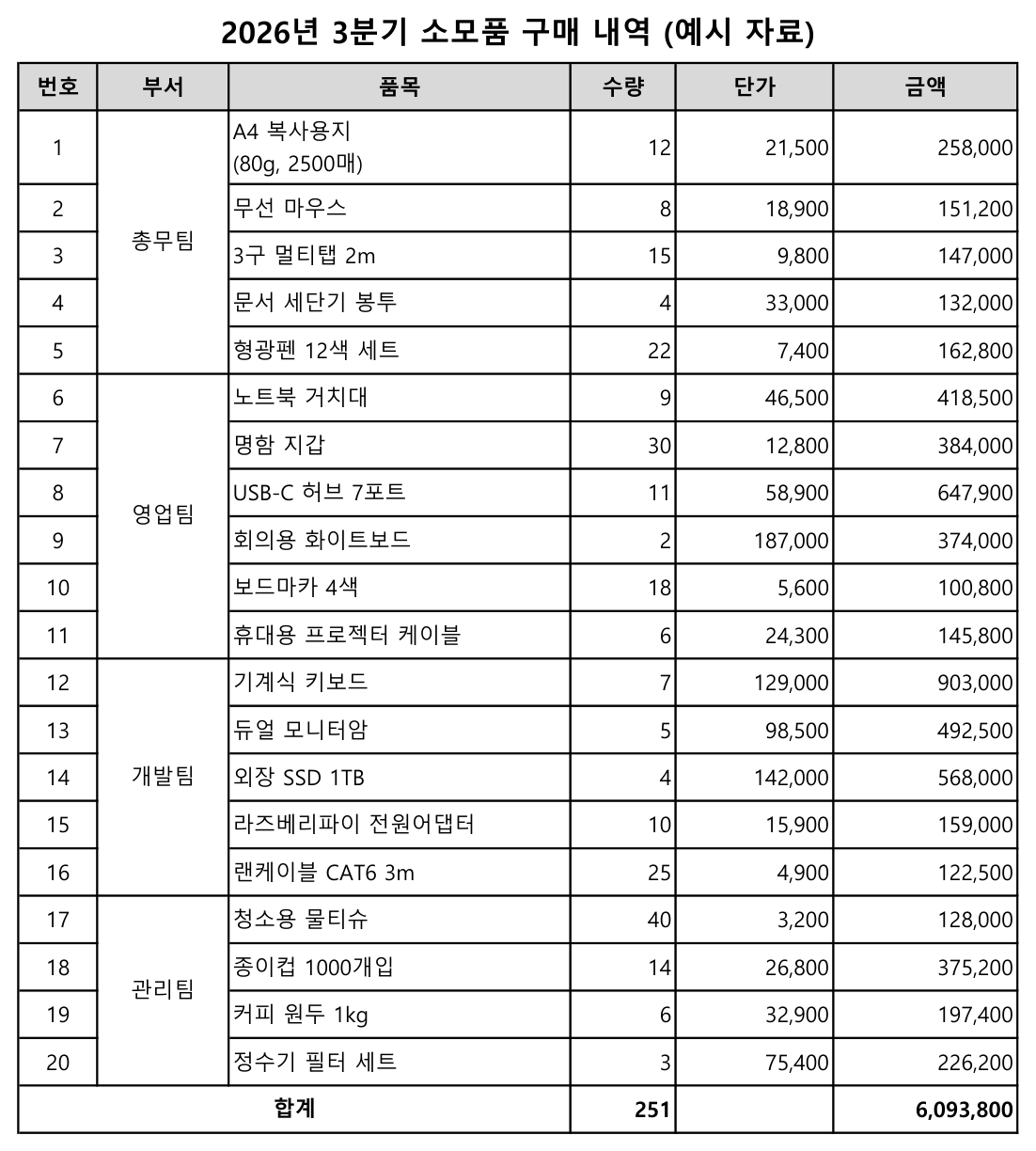
From that one table we made two PDFs.
| File | How it was made | Size | Characters extracted |
|---|---|---|---|
| Text PDF | Exported to PDF from Excel | 75,194 bytes | 686 |
| Stand-in for a scan | The PDF above turned into an image and put back into a PDF | 6,533,732 bytes | 0 |
Open the scan version and one A4 page holds a single 1241×1754 px PNG. That works out to 150 dpi. Not one character can be extracted, and the character boxes pdfplumber counts (chars) come to 0. A PDF from a scanner or a phone may well be in this state. Some devices do recognise the text as they scan, though, so check which kind you were sent by opening it and seeing whether text can be selected.
2026-09-28 addition: checked against official help; not run directly in the GUI
The click-through steps below were checked against Microsoft's official help. Windows, Excel and Word were unavailable for this addition. The row counts, totals and timings later in this article remain the automation measurements from 2026-09-18; they are not new results from these GUI steps.
Excel: from choosing the PDF to loading the sheet
- Choose Data > Get Data > From File > From PDF. In the file picker, select the PDF on your computer, then choose Import/Open.
- In Navigator, click the Table or Page entries and inspect the preview on the right. A table and its containing page may both appear. Start with a Table whose headers, first and last rows, and column count match the original. If none fits, inspect the Page entries. Select only the content you need; choosing both representations can duplicate it.
- Choose Load if the preview is ready. To remove a title row or adjust headers and number types first, choose Transform Data, make the changes in Power Query Editor, then choose Home > Close & Load.
- Count the data rows, excluding titles, headers and totals. Check the total row's column positions, plus
COUNTandSUMon the amount column. Our test's targets are 20 rows / quantity 251 / amount 6,093,800; use your own PDF's targets for another file.
Sources: Microsoft's PDF connector help for selection and Load/Transform, the Excel team's PDF import announcement for tables and pages, and create, load, or edit a query for loading after edits. If the preview has no usable content, check the scan section below before loading an empty result.
Word: open the PDF, select the table, paste into Excel
- In Word, use File > Open > Browse to select the PDF. Accept the conversion notice with OK. Word creates an editable copy and leaves the original PDF unchanged.
- Check that the table's text is selectable. A page that became one image cannot be copied as cells this way. In Print Layout view, point at the table and click its four-arrow table move handle at the upper left to select the whole table. You can also select just the rows and columns you need.
- Press Ctrl+C. In a blank Excel sheet, select the upper-left destination cell, such as A1, and press Ctrl+V. Check that the destination area is empty first because pasting replaces existing values.
- Check that the result occupies cells and that the merged total row has not shifted. Extra paragraph breaks inside Word cells can create extra Excel rows. Reconcile row count, numeric types, quantity and amount totals, then save as
.xlsx. If amounts are text, apply the repair in the section below and check the totals again.
Sources: Microsoft's Edit a PDF, select and copy a table, copy a Word table into Excel, and PDF conversion limitations. We have not established that clipboard copying gives the same result as reading the table through COM below.
Method 1 — Excel's Get Data > From PDF (start here)
In the Excel ribbon: 데이터 > 데이터 가져오기 > 파일에서(F) > PDF에서(P). On an English install that path reads Data > Get Data > From File > From PDF.
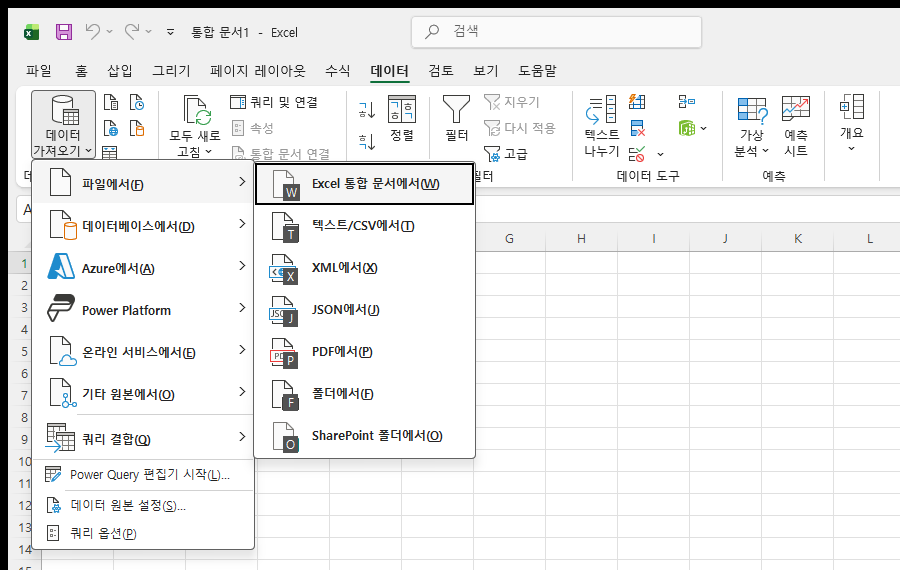
We confirmed on screen only that the menu is there; for the measurements we ran the Power Query expression this feature uses and counted the result.
let Source = Pdf.Tables(File.Contents("...\P1_원본표.pdf"), [Implementation="1.3"]),
    Tb = Table.SelectRows(Source, each [Kind] = "Table"),
    First = Tb{0}[Data]
in First
What came back was 23 rows × 6 columns. The first row is the placeholder header Column1–Column6, and the original table sits underneath it.
- 20 data rows — correct
- Quantity total 251 — correct
- Amount total 6,093,800 — correct
- 2 of the 132 cells differ from the original. Both are in the total row. In the original, A–C are merged and the word 「합계」 (total) sits in the first cell; in the result 「합계」 landed in column 3
- The line break inside the item cell survived
Method 2 — Opening the PDF in Word
Word converts a PDF into an editable document when it opens it. In the PDF we tested, the table came through as a single Word table. We drove Word through automation (COM), read that table, and saved what we read to an Excel file to take the measurements.
The text PDF took 45.7 seconds to open, and Word found 1 table (22 rows × 6 columns).
- 20 data rows, quantity total 251, amount total 6,093,800 — all correct
- 3 cells differ from the original, all of them in the total row. A–C are merged in the original; in the result the quantity slid from column 4 to column 2 and the amount from column 6 to column 4, two columns each
Original : 합계 |      |      | 251       |     | 6,093,800
Result : 합계 | 251 | | 6,093,800 | |- The line break in the item cell disappeared. It became one line,
A4 복사용지(80g, 2500매)
Give the total row a look after you convert. The 20 data rows are fine; it is only the last line that shifts.
Method 3 — pdfplumber (for the same layout, over and over)
If Python is installed and the same form of PDF arrives every month, this is the comfortable route. For a one-off, start with method 1.
pip install pdfplumber openpyxlimport pdfplumber, openpyxl
with pdfplumber.open(r"C:\path\myfile.pdf") as pdf:
table = pdf.pages[0].extract_table()
wb = openpyxl.Workbook()
ws = wb.active
for row in table:
ws.append(["" if v is None else v for v in row])
wb.save(r"C:\path\result.xlsx")From the text PDF it took 22 rows × 6 columns straight across, and not one of the 132 cells differed. Of the three methods it stayed closest to the original (pdfplumber 0 cells, Excel 2, Word 3). It kept the total row in its proper columns, too.
["합계", null, null, "251", "", "6,093,800"]Merged department cells arrive as null (blank). 16 of the 20 data rows had an empty department. That matches what you see on screen, so it isn't wrong, but if you plan to sort or pivot you will need to fill each blank with the value above it.
The trap all three share — amounts arrive as text
We opened the three converted files and checked the data type of the amount column.
| Method | First amount cell | Type | Numeric cells out of 20 | Result of Excel SUM |
|---|---|---|---|---|
| Excel From PDF | 258,000 | text | 0 | 0 |
| Opened in Word | 258,000 | text | 0 | 0 |
| pdfplumber | 258,000 | text | 0 | 0 |
The 258,000 inside a PDF is a run of characters with a comma in it. In this test all three methods handed it over as text, exactly as it was. Total it and you get 0, and because it looks like a number on screen it is easy to miss. COUNTA, which counts non-empty cells, returns 20, while COUNT, which counts numeric cells, returns 0.
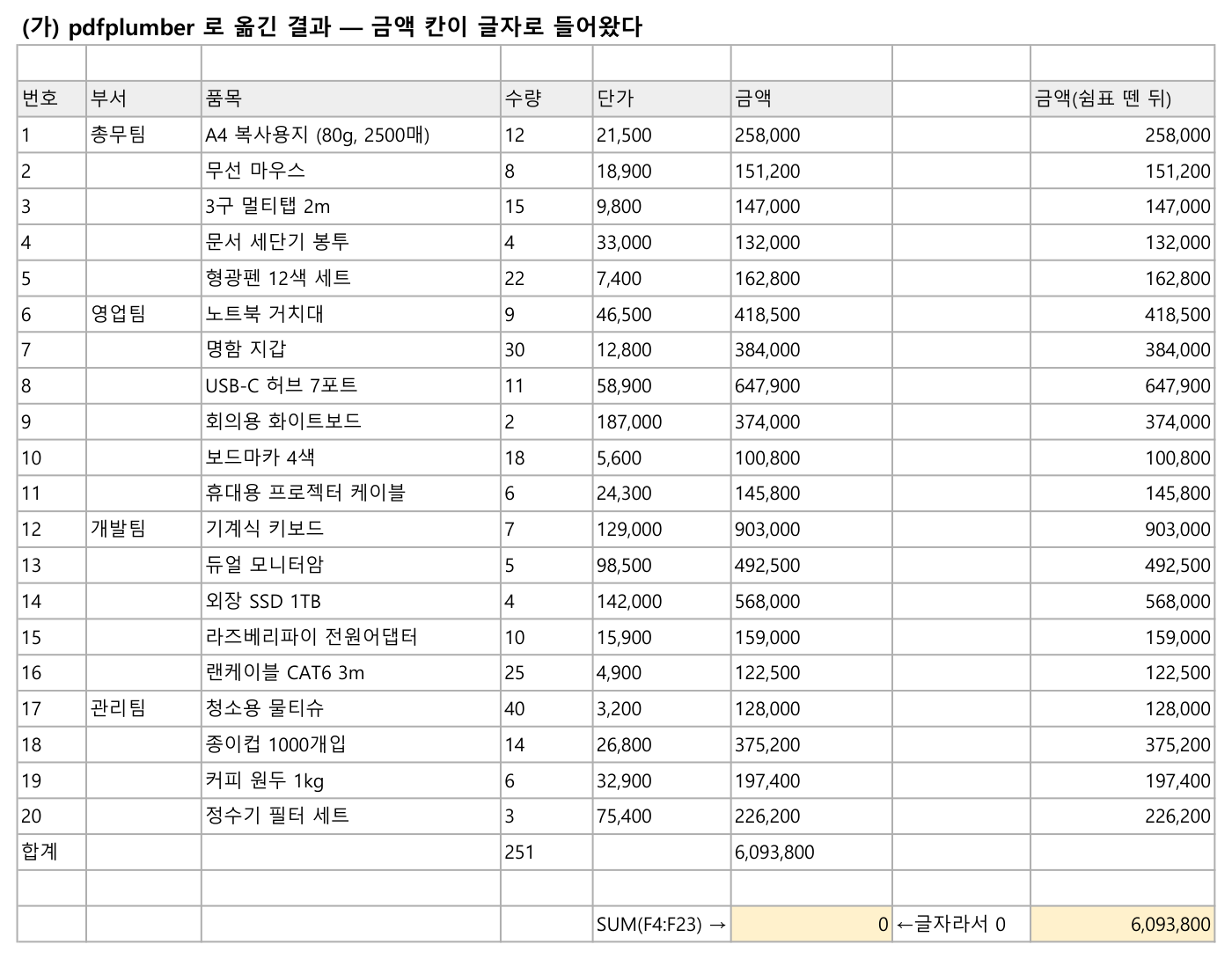
The fix is simple.
- Select the quantity, unit price and amount columns
- Press Ctrl+H and replace
,with nothing
Those two steps were the whole repair in our measurements. The moment the commas went, Excel took the values as numbers on its own.
Before        : F2 = '258,000' (text)   SUM(F2:F21) = 0        COUNT = 0   COUNTA = 20
Commas gone   : F2 = 258000 (number)    SUM(F2:F21) = 6093800
Then Text to Columns over F2:F22 : SUM(F2:F21) = 6093800, COUNT = 20, SUM(D2:D21) = 251
If a green triangle stays in the corner and a cell keeps behaving as text after the commas are gone, select that column and press Finish right away in 데이터 > 텍스트 나누기 (Data > Text to Columns; 「마침」 is the Finish button). We then had automation do the same thing (Range.TextToColumns) and confirmed 20 numeric cells and the quantity total of 251.
What happens with a scanned PDF
This is where the three methods part company.
pdfplumber — finds 0 tables. 0 characters on the page, 0 character boxes, 1 image. With nothing to move, it wrote no Excel file either.
Excel's From PDF — the query registers, then stops on refresh.
[Expression.Error] 열거형에 요소가 너무 적어 작업을 완료할 수 없습니다.That reads "there weren't enough elements in the enumeration to complete the operation". Our expression takes the first of the results classified as a table (Tb{0}[Data]), so it appears to mean there was nothing to take. We did not print the intermediate results to check.
Word — this is the dangerous one. Word opens the file in 1.7 seconds and produces a table (22 rows × 6 columns). Text came out of a PDF with no text layer in it. The numbers, though, are wrong.
| Item | Original | What Word read |
|---|---|---|
| Data rows that still have a row number | 20 | 17 |
| Quantity total | 251 | 190 |
| Amount total | 6,093,800 | 5,122,000 |
| Cells differing from the original | — | 14 of 132 |
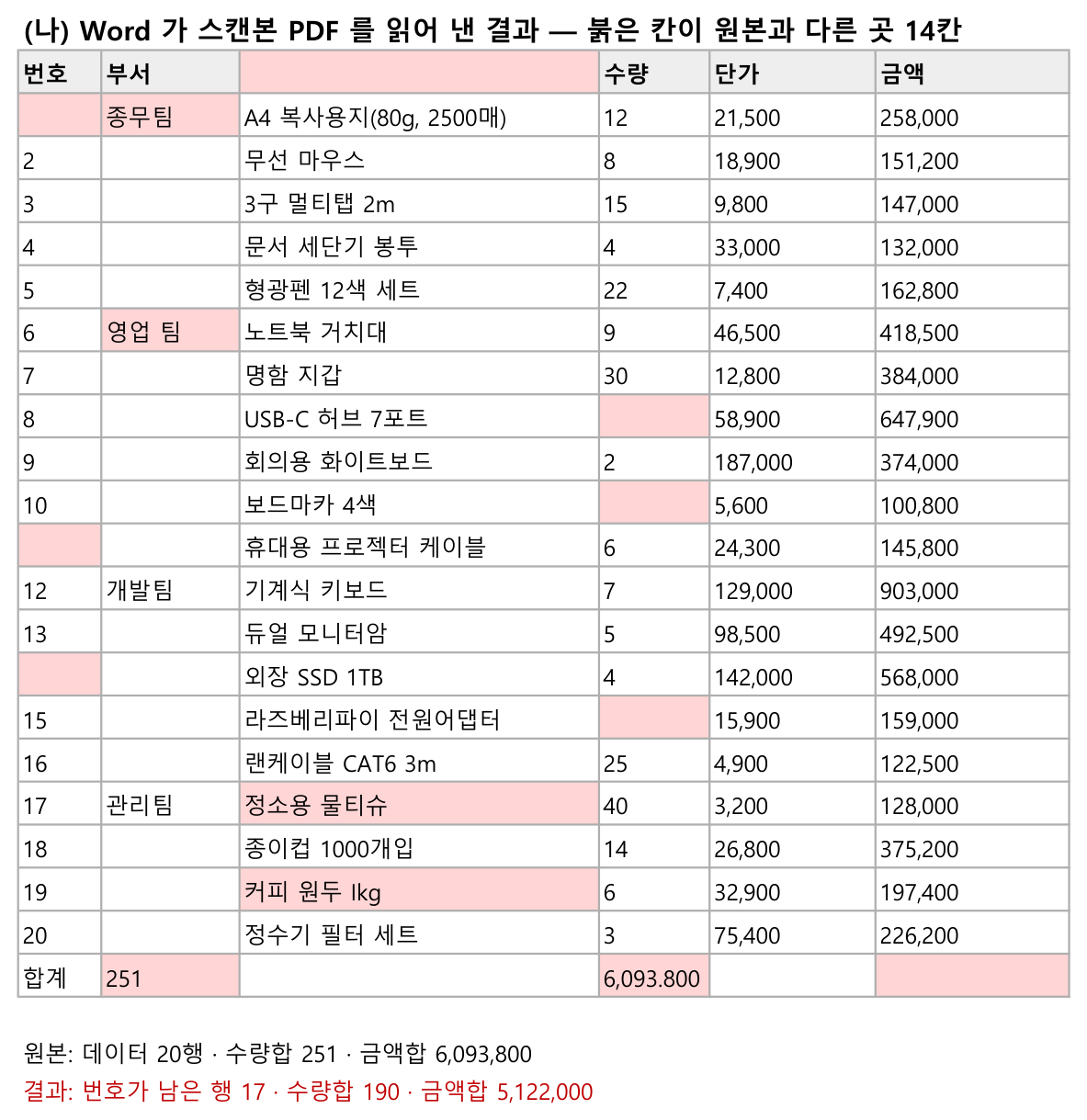
Here are the 14 wrong cells exactly as they came out.
row  1 col 3: '품목'          -> ''
row  2 col 1: '1'             -> ''
row  2 col 2: '총무팀'        -> '종무팀'
row  7 col 2: '영업팀'        -> '영업 팀'
row  9 col 4: '11'            -> ''
row 11 col 4: '18'            -> ''
row 12 col 1: '11'            -> ''
row 15 col 1: '14'            -> ''
row 16 col 4: '10'            -> ''
row 18 col 3: '청소용 물티슈' -> '정소용 물티슈'
row 20 col 3: '커피 원두 1kg' -> '커피 원두 Ikg'
row 22 col 2: ''              -> '251'
row 22 col 4: '251'           -> '6,093.800'
row 22 col 6: '6093800'       -> ''
Six number cells in the body were emptied outright (seven if you count the amount in the total row), and the total amount had its comma turned into a period, giving 6,093.800. In the Korean text, 총무팀 (general affairs) was read as 종무팀, 청소용 (cleaning) as 정소용, and the digit 1 as the letter I.
A table being produced and the numbers being right are two different things. If you have converted a scan, check the row count and the totals against the original without exception.
A scan needs text recognition (OCR)
The results above are the reason. This scanned PDF holds not one character, just a single photograph. To move the table you first have to go through the step of looking at the shapes in that photo and guessing the characters — text recognition, OCR.
Word produced a table with text in it in 1.7 seconds. What recognition happened inside it we did not check. But as the result shows, this kind of work is guessing. The same Word missed only 3 of 132 cells on the text PDF and 14 on the scan, and got the amount total wrong by more than 15%.
If you have to deal with a scan, this order is the safer one.
- Ask whoever sent it for a PDF with text in it, or the Excel file
- If that fails, run OCR — then reconcile the row count and the totals against the original
- If money is in the table, put the time for a line-by-line visual check into the schedule
Results — what to use when
| Situation | Method | Why |
|---|---|---|
| PDF with text, a one-off job | Excel 데이터 > 데이터 가져오기 > 파일에서 > PDF에서 (Data > Get Data > From File > From PDF) | Excel is all you need, and only 2 of 132 cells came out different (the total row) |
| PDF with text, and the body needs editing too, not just the table | Open the PDF in Word, then move the table to Excel | It becomes a document you can work on. The columns do shift on the merged total row |
| Several PDFs in the same layout every month | pdfplumber | All 132 cells matched. It holds column positions, which suits repeat processing |
| Amount and quantity columns, whichever method | After converting, strip the commas with Ctrl+H (Text to Columns if that fails) | In this test all three methods delivered the numbers as text. Leave it and SUM is 0 |
| Tables with departments or items merged vertically | After converting, fill the blanks with the value above | A merged cell puts text only in the first row and leaves the rest empty (16 rows out of 20) |
| Scans and photo PDFs | Ask for the file again first; failing that, OCR plus a full check | pdfplumber found 0 tables, Excel errored, and Word's total came to 5,122,000 instead of 6,093,800 |
| Company material | All three are procedures for opening a file on your own PC | There is no step that uploads anything to a conversion site |
What failed
- The first time we brought Word up through automation,
Documents.Open(pdf, ConfirmConversions=False, ReadOnly=True, Visible=False)ended in a COM error. That first run is the one we failed to capture to a log file, so all we have is what we saw on screen. With no log, we are not quoting the error text here. - After that,
Openon the same file did not return even after 60 seconds. We brought Word up visible and listed the windows every 5 seconds: twoNUIDialogwindows stood there for the full 60. Capturing one as an image and reading it gave 「마지막으로 'P1_원본표.pdf'을(를) 열었을 때 오류가 발생했습니다. 그래도 이 문서를 여시겠습니까?」 — Word ran into an error the last time it opened this file and is asking whether to open it anyway. The image sits alongside the raw data asP1_word_dialog_1.png. - A file with a different name (
P1_워드용_글자.pdf) opened in 45.7 seconds. Whether the changed file name was the cause, we could not establish. - Later we ran it again with the same
ReadOnly=Trueoption and it simply opened (1 table). So we cannot pin the first failure onReadOnly. - While building the Excel file for the screenshot, we put the text
=SUM(F4:F23) →into a cell through openpyxl. Anything starting with=is stored by openpyxl as a formula (data_type='f'), and since this was not a valid formula, Excel could not open the file (Workbooks 클래스 중 Open 메서드에 오류가 있습니다— the Open method of the Workbooks class failed). Dropping the=and rebuilding it fixed that. - Our first pass of the cell comparison was written to ignore spacing, so it missed Word reading
영업팀as영업 팀on the scan. We recounted and corrected 13 cells to 14.
What we did not test
- How Word pulled text out of the scan. All we observed is that text came out of a PDF with no text layer.
- Excel's From PDF we only confirmed on screen as far as the menu. We did not click through choosing a file and picking a table in the navigator; we ran the equivalent Power Query expression instead.
- With Word too, we never walked the on-screen File > Open path to a PDF. We only opened it through automation. Nor did we check whether copying the Word table with the mouse and pasting it into Excel gives the same result.
- We did not watch the network to see whether any of these methods communicate. We confirmed only that the input and output paths of the commands we ran are all on this PC.
- The scan is a stand-in, made by turning the text PDF into a 150 dpi image. We did not use a file from a real scanner. Skewed paper or smudges could make things worse.
- We did not test a PDF whose table continues across pages, or one with a table inside a table.
- We did not test a table without borders. The table we tested has solid lines on 130 of its 132 cells.
- Opening a PDF in Hangul (HWP) is not covered here.
- We did not try other versions of Excel and Word, or a Mac.