AI how-to notes · 2026-09-18 · last run 2026-09-18 · 한국어 원문
Shrinking a PDF — 40x smaller for a photo-heavy file, barely anything for a text one
One line summary
We took a 37.5 MB photo document and a 74 KB text document and tried to shrink them. The photo document came down to 3.7 MB (10.0%) simply by re-saving the images, and to 0.9 MB (2.5%) with the resolution halved. On the text document the best of the methods we tried landed at 95.4%, and turning on one option (clean=True) on its own made it bigger, at 182%. We installed no external program at all.
Who this is for
- Anyone up against an email attachment limit who has to shrink a PDF
- Anyone who compressed a file, saw no change, and wonders whether they picked the wrong method
- Anyone who can't upload company material to a compression site
Test environment
| Item | Value |
|---|---|
| OS | Windows 11 Home 25H2 (10.0.26200.9457) |
| Shell | PowerShell 7 / Git Bash |
| Edge | 153.0.4234.32 |
| Python | 3.12.10 |
| Python packages | PyMuPDF 1.28.0, Pillow, NumPy |
| External programs | none installed (no Ghostscript or anything similar) |
| Test files | Two dummy PDFs made for the test. The photos are patterns drawn by a program |
The two documents we tested
With file size, the answer depends entirely on what kind of document you have. So we made two.
| Document | Pages | Size | What's inside |
|---|---|---|---|
| ① Photo-heavy document | 6 | 39,305,252 bytes (37.5 MB) | 12 images, 72 characters |
| ② Text-led document | 12 | 74,157 bytes (0.07 MB) | 0 images, 13,359 characters |
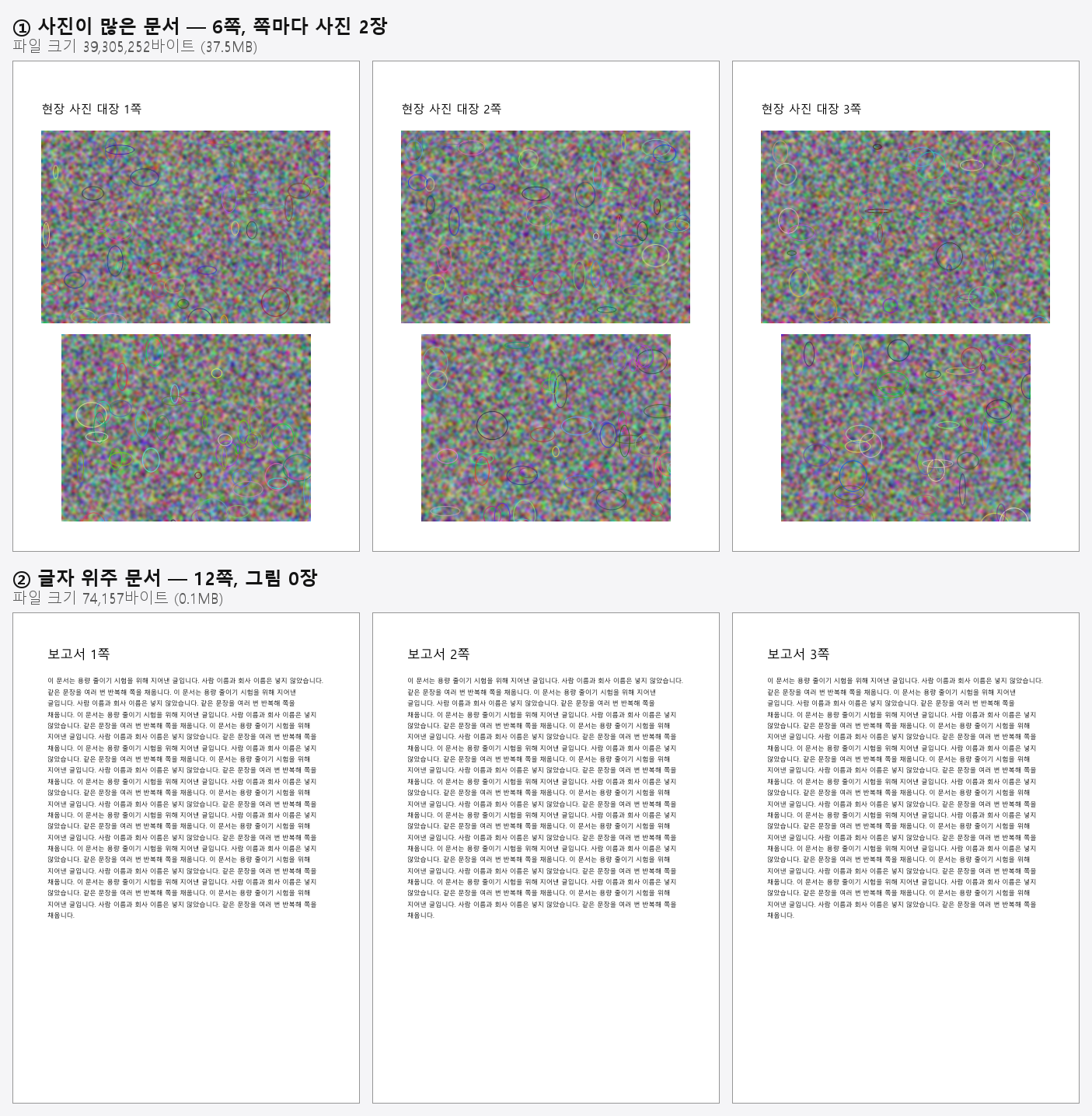
The first image on page 1 of the photo document is a 1500x1000 pixel PNG. It sits on the page 495 pt wide (about 17.5 cm), which works out to 218 dpi. That one image takes up 3,816,210 bytes.
We measured three things: file size, whether the text can still be extracted, and how much it smears when you zoom in. For the last one we rendered page 1 of the result and page 1 of the original at 200 dpi each and averaged the absolute difference of the pixel values (0–255). That value is what the tables below call "image difference"; 0 means it renders identically to the original.
Where sizes are given in MB, 1 MB is counted as 1,048,576 bytes. For exact figures, read the byte column.
First thing to know — save options alone won't shrink it
We applied PyMuPDF's cleanup options to save one at a time and then in combination. Going by the names, garbage clears out objects nothing uses any more, deflate compresses, and clean tidies the internal structure.
import fitz

d = fitz.open(r"C:\path\source.pdf")
d.save(r"C:\path\result.pdf", garbage=4, deflate=True, clean=True)
d.close()
Here is what they did to the photo document (39,305,252 bytes).
| Save method | Result size | vs original |
|---|---|---|
garbage=4 | 39,305,252 bytes | 100.0% |
deflate=True | 39,305,252 bytes | 100.0% |
clean=True | 39,306,909 bytes | 100.0% |
garbage=4, deflate=True, clean=True | 39,304,874 bytes | 100.0% |
the above plus deflate_images=True | 39,304,874 bytes | 100.0% |
the above plus use_objstms=1 | 39,301,917 bytes | 100.0% |
ez_save() | 39,301,959 bytes | 100.0% |
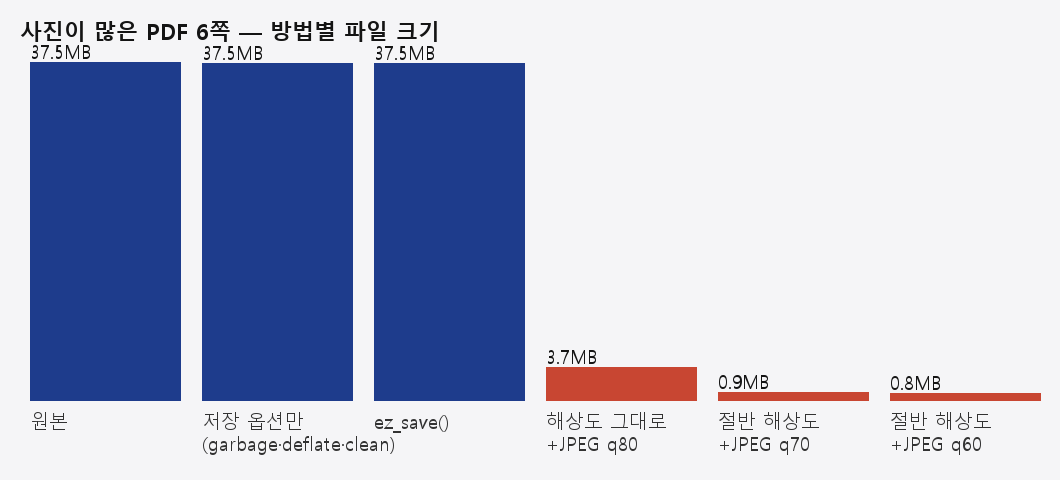
The biggest saving was 3,335 bytes, or 0.01%. All of them finished in 0.1–0.2 seconds. In every case the images stayed at 12 and the first image stayed 1500x1000 pixels, and the image difference was 0.00 throughout. What carries the weight in this document is the images, and the save options we tested leave the images alone.
A photo-heavy document — re-save the images
PyMuPDF has rewrite_images, which picks out the images and saves them again. Going by the names, dpi_threshold decides which images get touched, dpi_target is the level to come down to, and quality is the JPEG quality. How many pixels actually came out is written into the table below exactly as measured.
import fitz

d = fitz.open(r"C:\path\source.pdf")
d.rewrite_images(dpi_threshold=101, dpi_target=96, quality=70)
d.save(r"C:\path\result.pdf", garbage=4, deflate=True, clean=True)
d.close()| Setting | Result size | vs original | Image size | Resolution on the page | Image difference |
|---|---|---|---|---|---|
| untouched | 39,305,252 bytes | 100.0% | 1500x1000 PNG | 218 dpi | 0.00 |
| threshold 151 / target 150 / q 80 | 3,915,066 bytes | 10.0% | 1500x1000 JPEG | 218 dpi | 1.83 |
| threshold 151 / target 110 / q 75 | 3,325,472 bytes | 8.5% | 1500x1000 JPEG | 218 dpi | 1.91 |
| threshold 101 / target 96 / q 70 | 964,328 bytes | 2.5% | 750x500 JPEG | 109 dpi | 2.50 |
| threshold 101 / target 72 / q 60 | 836,249 bytes | 2.1% | 750x500 JPEG | 109 dpi | 2.70 |
All four runs took under 2 seconds (0.6–1.5 s in the log).
The biggest saving came from the image format, not the resolution. At the same 1500x1000 pixels, PNG turning into JPEG took one image from 3,816,210 bytes down to 364,280 bytes. For the whole file that is a tenth. Halve the resolution on top of that and you reach 2.5%.
It stands out that the pixel count went from 1500 to 750, exactly half. Whether we asked for target 110 or 150 it stayed at 1500, and dropping to threshold 101 / target 96 took it to 750 in one step. It does not match the dpi you write. Which setting gives how many pixels is something to settle by examining the result.
We zoomed in to look at the quality. This is the same spot enlarged to 400%.
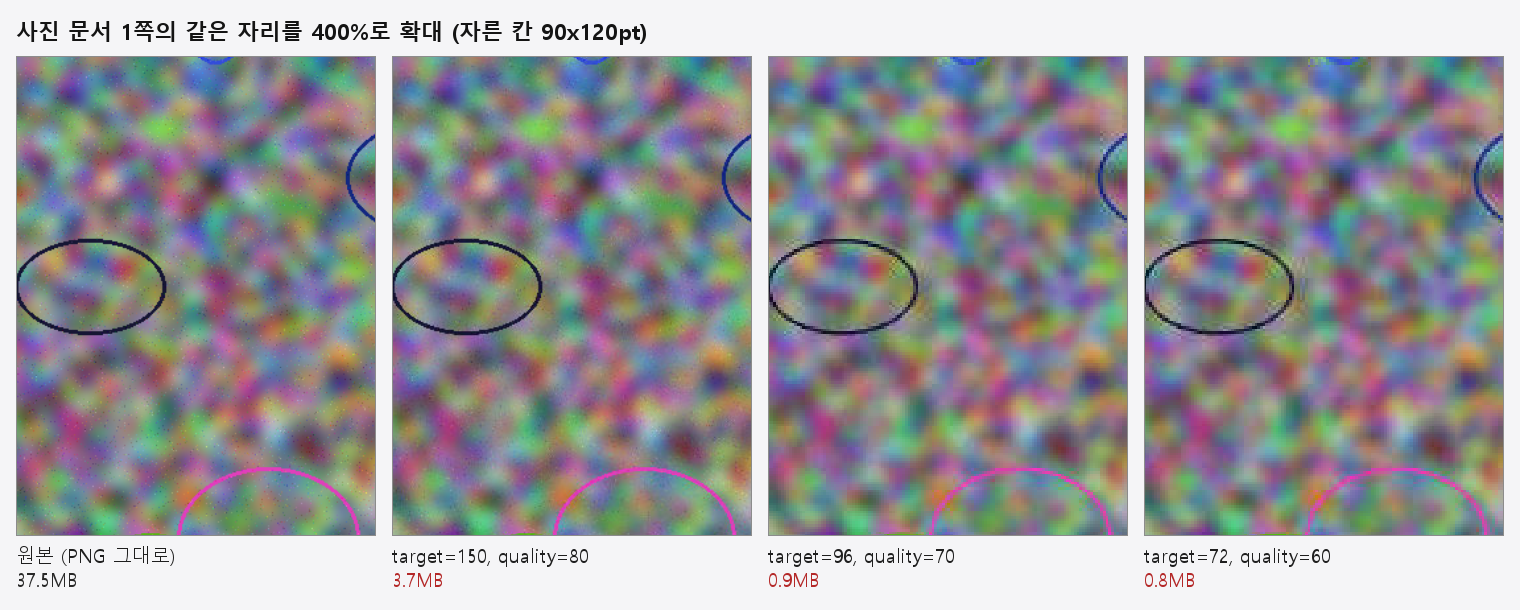
The original and target=150, quality=80 have clean circle edges. From target=96 the edges show steps and the pattern starts to smear; target=72 is blurrier still. For drawings, or photos with small print in them, stopping before 96 is the safe call.
Extractable text stayed at 72 characters under every setting.
A text-led document — there is almost nothing to shrink
We put the same options on the 12-page text document (74,157 bytes). The best performer in this table, ez_save(), is called like this.
import fitz

d = fitz.open(r"C:\path\source.pdf")
d.ez_save(r"C:\path\result.pdf")
d.close()| Save method | Result size | vs original |
|---|---|---|
garbage=4 | 74,156 bytes | 100.0% |
deflate=True | 74,157 bytes | 100.0% |
clean=True | 135,202 bytes | 182.3% |
garbage=4, deflate=True, clean=True | 77,034 bytes | 103.9% |
the above plus use_objstms=1 | 73,549 bytes | 99.2% |
ez_save() | 70,712 bytes | 95.4% |
subset_fonts() then garbage=4, deflate, clean | 77,033 bytes | 103.9% |
rewrite_images(threshold=97, target=96, quality=70) | 77,139 bytes | 104.0% |
The best, ez_save(), is a 4.6% reduction. And clean=True on its own takes the file to 135,202 bytes, 1.8 times the original. That is the spot where you switch something on to compress and end up inflating instead. We did not dig into why it grows. With garbage=4, deflate=True alongside it, the result was 77,034 bytes, so at least it did not reach 1.8 times.
Putting rewrite_images on a document with no images achieves nothing: 104.0%, slightly bigger rather than smaller. The 13,359 characters came out intact in every case.
We counted what is inside those 74,157 bytes. There are 15 compressed streams, and the two largest are the table mapping glyphs to Unicode (50,346 bytes) and the Korean font (15,619 bytes). Together that is 65,965 bytes, 89.0% of the file. All 13 of the others added together come to 1,290 bytes, and the content streams among them already carry FlateDecode. Take the font out and the text is not visible, so there is nothing left to shrink. The pages that would not shrink in the note on pulling pages out look to be the same streams at work.
Shrinking with nothing installed — printing from Edge
There is one route that needs no Python. Open the photo document in Edge, press Ctrl+P, pick 「Microsoft Print to PDF」 as the printer and print, and you get a new PDF.
| Item | Original | rewrite_images (150/q80) | Edge print |
|---|---|---|---|
| Size | 39,305,252 bytes | 3,915,066 bytes (10.0%) | 1,641,339 bytes (4.2%) |
| Pages | 6 | 6 | 6 |
| Images | 1500x1000 PNG 218 dpi | 1500x1000 JPEG 218 dpi | 1500x1000 JPEG 218 dpi |
| Extractable text | 72 characters | 72 characters | 0 characters |
| Image difference | 0.00 | 1.83 | 3.38 |
| Page size | 595.0000 x 842.0000 pt | 595.0000 x 842.0000 pt | 595.3200 x 841.9200 pt |
Of these three files the Edge printout is the smallest. In exchange, extractable text goes to 0. All six pages held 0 characters, 2 images and 8 vector drawings. For something like a photo log, where there was hardly any text to begin with, it is usable; for a report with a body, the loss is large. And since the resolution-lowering target=96 version (964,328 bytes) is smaller anyway, there is no reason to take this route if Python is available.
How much came off — at a glance
| Document | Method | Before | After | Reduction |
|---|---|---|---|---|
| 6 photo pages | save options only | 37.5 MB | 37.5 MB | 0.01% |
| 6 photo pages | images to JPEG (q80, resolution kept) | 37.5 MB | 3.7 MB | 90.0% |
| 6 photo pages | images to JPEG + half resolution (q70) | 37.5 MB | 0.9 MB | 97.5% |
| 6 photo pages | Edge print | 37.5 MB | 1.6 MB | 95.8% (0 extractable characters) |
| 12 text pages | ez_save() | 74,157 bytes | 70,712 bytes | 4.6% |
| 12 text pages | clean=True alone | 74,157 bytes | 135,202 bytes | grew by 82.3% |
To sum up: in this test the photo document shrank a great deal, and the text document shrank 4.6% at best. Which side your file is closer to sorts itself out roughly by opening it and looking for photos. If the document is text only and the size is still a problem, dropping pages or splitting the file is the faster thing to look at.
What failed
- Giving
rewrite_images(dpi_threshold=96, dpi_target=96, ...)the same value twice stops it.
>>> d.rewrite_images(dpi_threshold=96, dpi_target=96, quality=70)
ValueError: {dpi_target=} must be less than {dpi_threshold=}
dpi_target has to be smaller than dpi_threshold. The table in this note is the re-run with the threshold set above the target (151/150, 151/110, 101/96, 101/72).
- The Edge printout has a page size of 595.3200 x 841.9200 pt, so its pixel count did not line up with the original render and the image difference could not be computed. The 3.38 in the table is a second measurement, taken after forcing the render to the same 1653x2339 as the original.
- The source images in the photo document are PNG, which is why switching to JPEG alone cut it to a tenth. How much comes off a document whose images are already JPEG cannot be told from this test. Do not read this result as "PDFs shrink to a tenth, generally".
What we did not test
- How much the same method removes from a PDF whose images are already JPEG. A large part of this reduction came from turning PNG into JPEG, so the share will differ for such a file.
- Black-and-white scans (1-bit images).
rewrite_imagesalso has values such asbitonal,grayandset_to_gray, and we left them at their defaults. - External programs such as Ghostscript or Acrobat, which we did not install. How much they take off is not something this note can say.
- Why text cannot be extracted from the Edge printout. Whether it is because the text is Korean, or whether English behaves the same, we did not test.
- What these methods do to the colour settings or font embedding a print shop would need.
- The image difference values compare pixels of page 1 rendered at 200 dpi. How it looks printed on paper, and whether other pages give the same value, we did not check.